الشاشات اللمسية
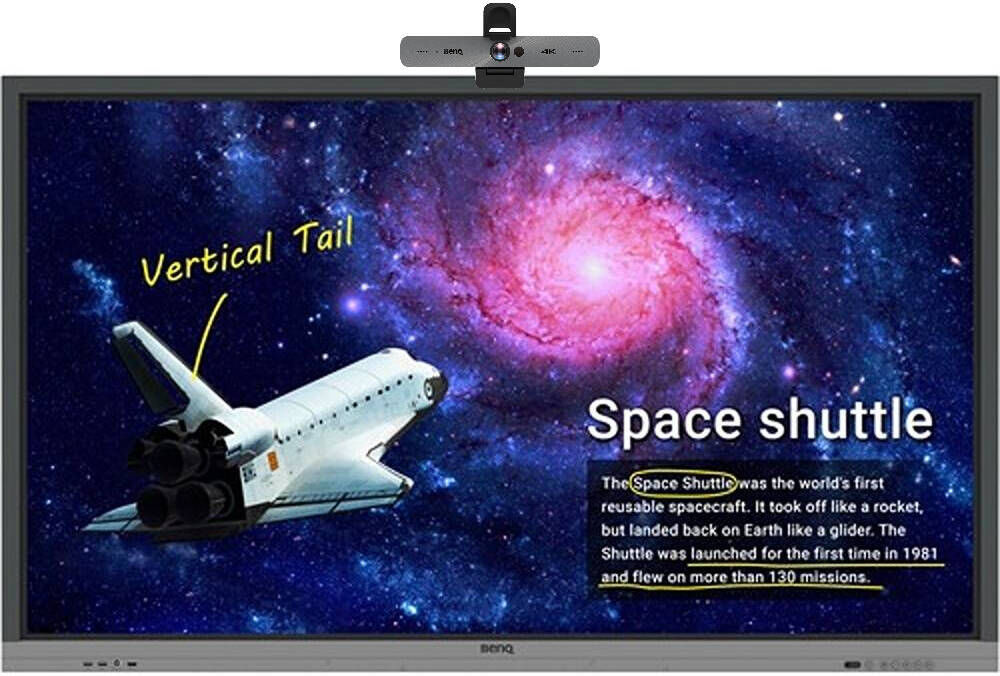
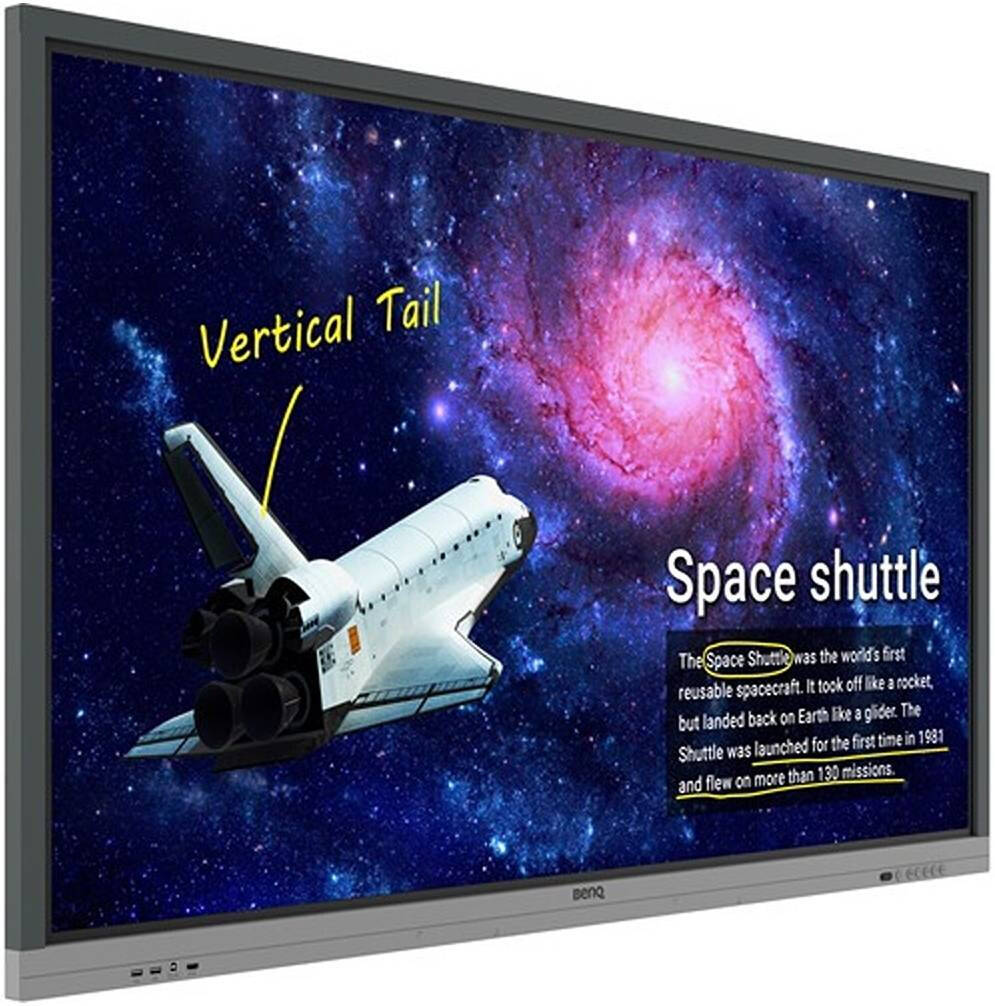
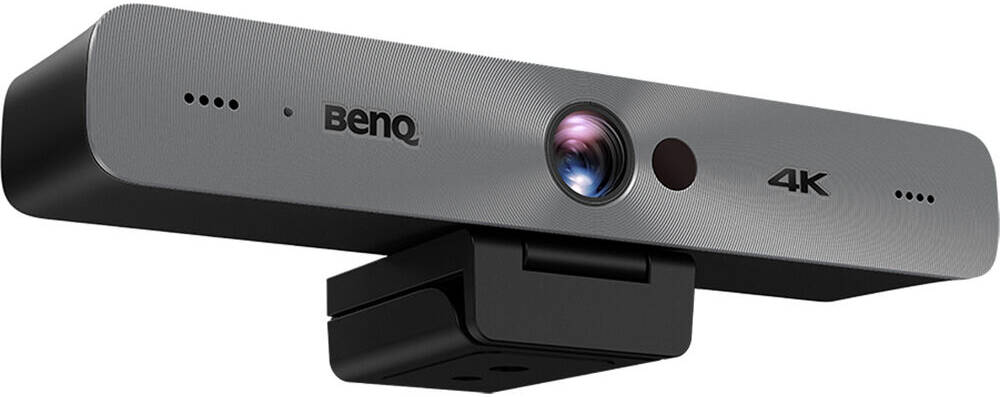
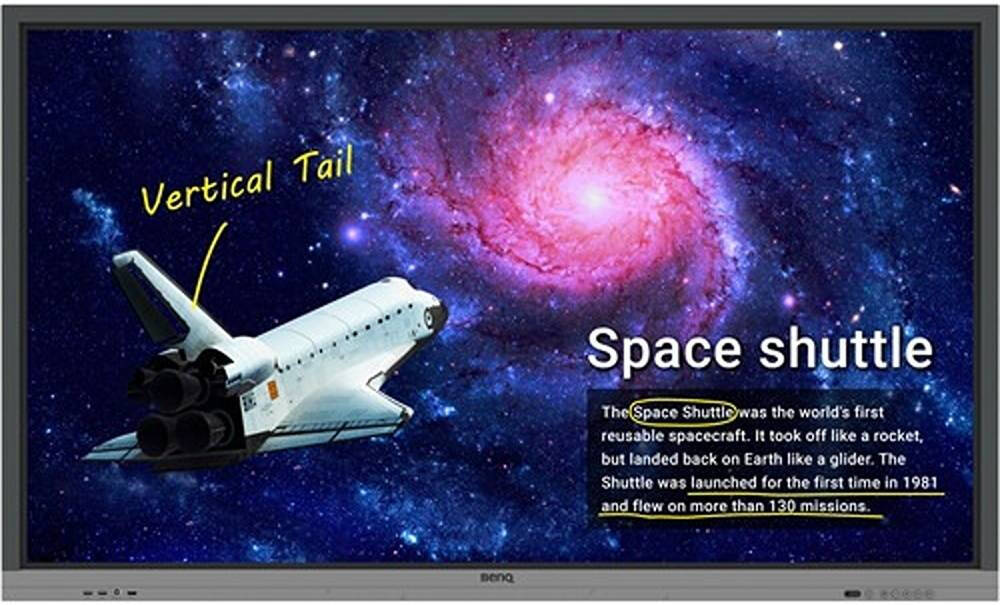
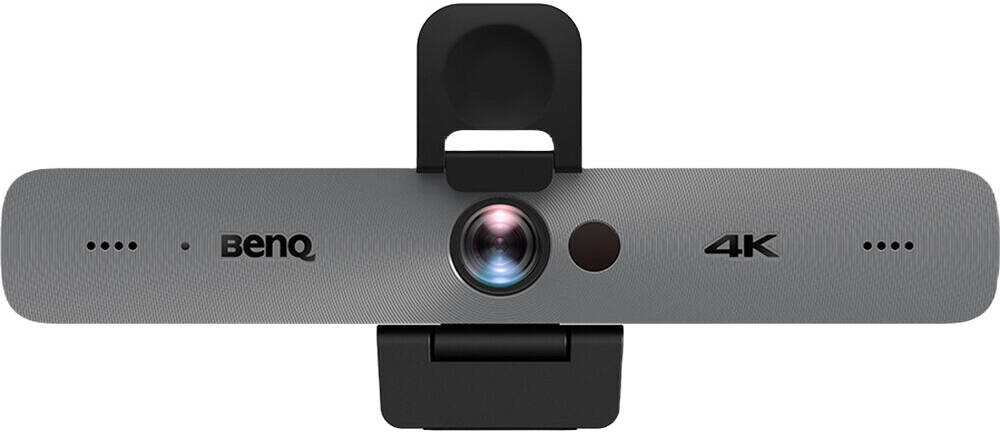
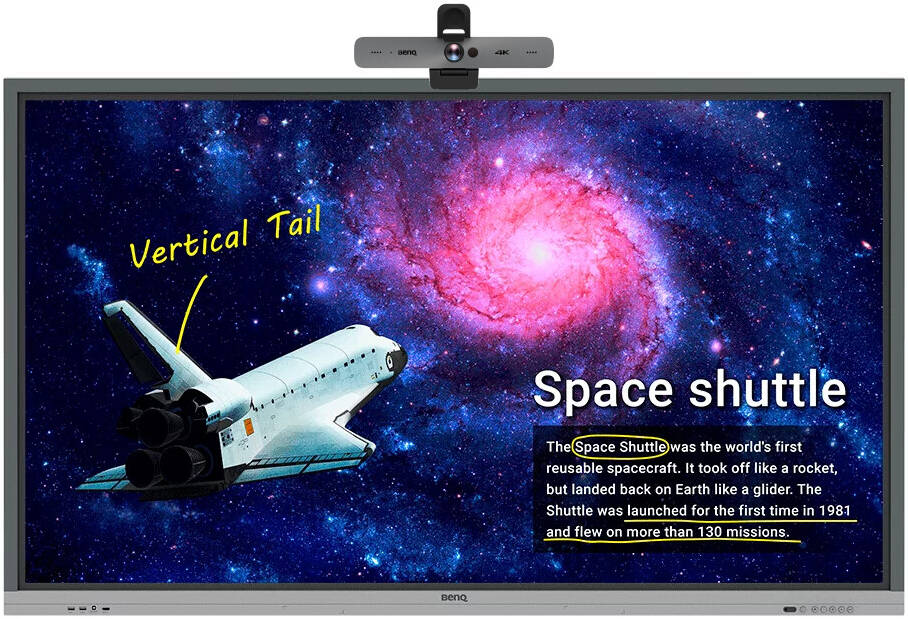
BenQ RE8601 86" Class 4K UHD Educational Touchscreen LED Display with BenQ DVY32 4K UHD Video Conference Camera, 4K UHD (3840 x 2160) Native Resolution, 20 Touch Points | RP860K / DVY32
Price on request
Send a free RFQ and get the supplier's best price.
أقل كمية طلب10 Unit
بلد الشحنالإمارات العربية المتحدة
حفظ
Share
Trade with confidence on Abraa
طريقة دفعة آمنة وموثوقة باستخدام منصة عبرة للدفع عبر الانترنت
Supplier verification not completed
Pay only through Abraa to stay protected. Never pay a supplier by direct transfer.
Secure Payment
Pay through Abraa, never by direct transfer to a supplier.
Product Inspection
Book a check before shipping to confirm quality and quantity.
حماية المشتري
Get support and refunds if goods arrive not as described.
Verified Suppliers
Licence, address and on-site checks by the Abraa team.
مواصفات المنتج
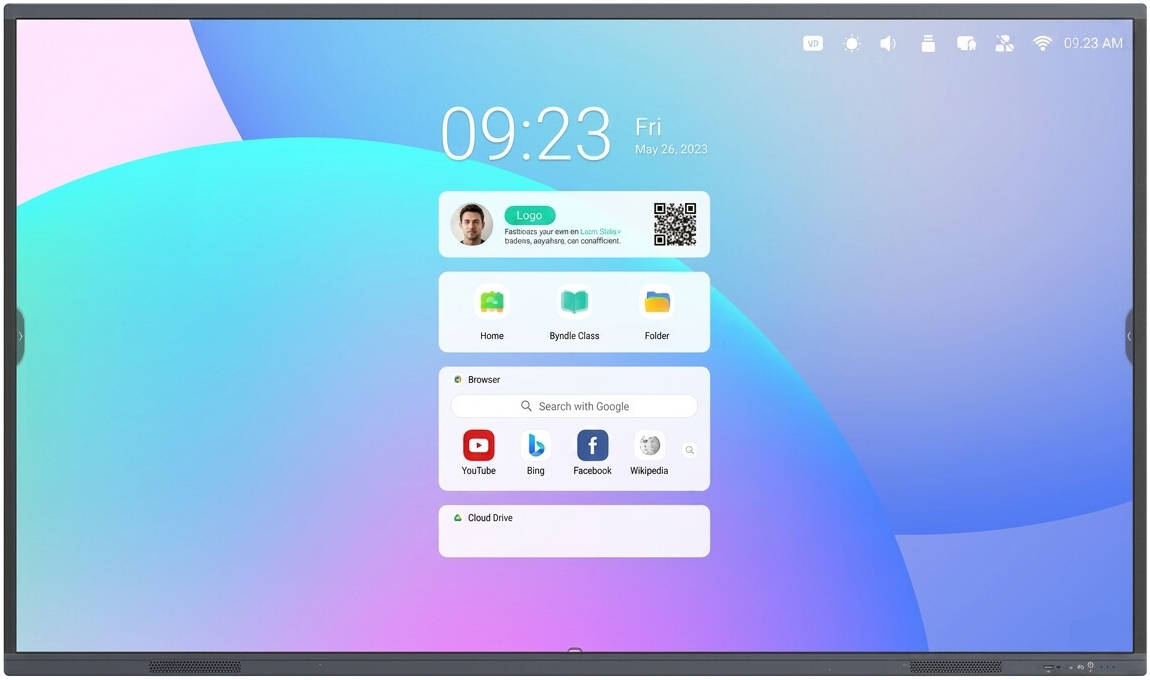
Create healthy and engaging learning spaces with the RE8601, BenQ's interactive display with healthcare features and innovative tools for active learning. With cloud features, EZWrite 5 streamlines classroom discussions by making it smoother than ever for teachers and students to share ideas, notes, and opinions as if they are annotating on the same whiteboard regardless of where they are. Furthermore, with AMS service teachers will be able to access teaching materials stored in cloud storage and start the class directly with BenQ Education Interactive Display.
*NOTE: Use OPS or PC to Connect the webcam in the interactive display. • Annotate and Collaborate with Cloudwhiteboard
• 4K UHD (3840 x 2160) Native Resolution
• Supports up to 20 Touch Points
• 8 ms Response Time
• 400 cd/m² Brightness
• Germ-Resistant Screen and Eye-Care Technology
• Wirless Screen Share Software InstaShare
• Built-in Digital Broadcast System X-sign Broadcast
• Pre-installed with Display Management solution
With cloud features, EZWrite 5 streamlines classroom discussions by making it smoother than ever for teachers and students to share ideas, notes, and opinions as if they are annotating on the same whiteboard regardless of where they are. Furthermore, with AMS service teachers will be able to access teaching materials stored in cloud storage and start the class directly with BenQ Education Interactive Display.
Smooth Real-Time Collaboration Cloud Whiteboard and Sticky Notes for Classrooms Packed with teacher- and student-friendly features, BenQ’s EZWrite 5 is the leading annotation solution for interactive and collaborative classroom scenarios. Teachers and students can enjoy enhanced interactivity by using EZWrite Cloud Whiteboard to collect, categorize, edit, and share notes between the interactive displays and mobile devices.
Instant Access to the Cloud EZWrite 5 allows teachers to directly download and upload files to cloud services, such as Google Drive and Dropbox. Exclusive to EZWrite 5, this convenient cloud access makes it easy for teachers to modify their materials and bring them everywhere.
Saving Files with EZWrite 5
Step1. Save your file
Step2. Choose your cloud storage
Loading Files with EZWrite 5
Step.1 Download a file from your cloud stroage
Step2. Open the file directly in EZWrite 5
Flexible Anytime Annotation
Step1. Press the Screen Shot button on the Floating Tool
Step2. Capture on-screen content directly on the display
Step3. Import to EZWrite 5 and make annotations
Brush Mode for Creative Education EZWrite 5 is ideal for creative, inspired creation in art classes. Users are guaranteed to enjoy an effortless experience that feels like writing and drawing with actual pens and brushes.
Floating Tool EZWrite’s built-in Floating Tool empowers teachers to write on top of any app, video, website, document, or image. Whether using Windows, Mac, Chrome, or Android, a teacher can take notes on top of any on-screen content and save
 \
منتجات مشابهة
View all
MOQ 10 PCs
iiyama ProLite TF4339AS-B1AG ...
MOQ 10 PCs
BenQ RM6502K 4K UHD 65" ...
MOQ 10 PCs
BenQ RE6503 65'' 4K UHD IPS ...
MOQ 10 PCs
SAMSUNG WAF Series ...

MOQ 1 PCs
15 Inch Touchscreen Monitor
MOQ 10 PCs
MAXHUB S7520 Interactive ...
MOQ 10 PCs
BenQ RE8603 86'' 4K UHD IPS ...
MOQ 10 PCs
MAXHUB U4 Series Interactive ...
MOQ 10 PCs
MAXHUB CE98GA Interactive ...
MOQ 10 PCs
BenQ RE7501 75" Class 4K ...
